Linggo, Oktubre 18, 2015

personal computer:
It can be defined as a small, relatively inexpensive computer designed for an individual user. In price, personal computers range anywhere from a few hundred pounds to over five thousand pounds. All are based on the microprocessor technology that enables manufacturers to put an entire CPU on one chip. Businesses use personal computers for word processing, accounting, desktop publishing, and for running spreadsheet and database management applications. At home, the most popular use for personal computers is for playing games and recently for surfing the Internet.
Personal computers first appeared in the late 1970s. One of the first and most popular personal computers was the Apple II, introduced in 1977 by Apple Computer. During the late 1970s and early 1980s, new models and competing operating systems seemed to appear daily. Then, in 1981, IBM entered the fray with its first personal computer, known as the IBM PC. The IBM PC quickly became the personal computer of choice, and most other personal computer manufacturers fell by the wayside. P.C. is short for personal computer or IBM PC. One of the few companies to survive IBM's onslaught was Apple Computer, which remains a major player in the personal computer marketplace. Other companies adjusted to IBM's dominance by building IBM clones, computers that were internally almost the same as the IBM PC, but that cost less. Because IBM clones used the same microprocessors as IBM PCs, they were capable of running the same software. Over the years, IBM has lost much of its influence in directing the evolution of PCs. Therefore after the release of the first PC by IBM the term PC increasingly came to mean IBM or IBM-compatible personal computers, to the exclusion of other types of personal computers, such as Macintoshes. In recent years, the term PC has become more and more difficult to pin down. In general, though, it applies to any personal computer based on an Intel microprocessor, or on an Intel-compatible microprocessor. For nearly every other component, including the operating system, there are several options, all of which fall under the rubric of PC
Today, the world of personal computers is basically divided between Apple Macintoshes and PCs. The principal characteristics of personal computers are that they are single-user systems and are based on microprocessors. However, although personal computers are designed as single-user systems, it is common to link them together to form a network. In terms of power, there is great variety. At the high end, the distinction between personal computers and workstations has faded. High-end models of the Macintosh and PC offer the same computing power and graphics capability as low-end workstations by Sun Microsystems, Hewlett-Packard, and DEC.
III, Personal Computer Types
Actual personal computers can be generally classified by size and chassis / case. The chassis or case is the metal frame that serves as the structural support for electronic components. Every computer system requires at least one chassis to house the circuit boards and wiring. The chassis also contains slots for expansion boards. If you want to insert more boards than there are slots, you will need an expansion chassis, which provides additional slots. There are two basic flavors of chassis designs–desktop models and tower models–but there are many variations on these two basic types. Then come the portable computers that are computers small enough to carry. Portable computers include notebook and subnotebook computers, hand-held computers, palmtops, and PDAs.
Tower model
The term refers to a computer in which the power supply, motherboard, and mass storage devices are stacked on top of each other in a cabinet. This is in contrast to desktop models, in which these components are housed in a more compact box. The main advantage of tower models is that there are fewer space constraints, which makes installation of additional storage devices easier.
Desktop model
A computer designed to fit comfortably on top of a desk, typically with the monitor sitting on top of the computer. Desktop model computers are broad and low, whereas tower model computers are narrow and tall. Because of their shape, desktop model computers are generally limited to three internal mass storage devices. Desktop models designed to be very small are sometimes referred to as slimline models.
Notebook computer
An extremely lightweight personal computer. Notebook computers typically weigh less than 6 pounds and are small enough to fit easily in a briefcase. Aside from size, the principal difference between a notebook computer and a personal computer is the display screen. Notebook computers use a variety of techniques, known as flat-panel technologies, to produce a lightweight and non-bulky display screen. The quality of notebook display screens varies considerably. In terms of computing power, modern notebook computers are nearly equivalent to personal computers. They have the same CPUs, memory capacity, and disk drives. However, all this power in a small package is expensive. Notebook computers cost about twice as much as equivalent regular-sized computers. Notebook computers come with battery packs that enable you to run them without plugging them in. However, the batteries need to be recharged every few hours.
Laptop computer
A small, portable computer -- small enough that it can sit on your lap. Nowadays, laptop computers are more frequently called notebook computers.
Subnotebook computer
A portable computer that is slightly lighter and smaller than a full-sized notebook computer. Typically, subnotebook computers have a smaller keyboard and screen, but are otherwise equivalent to notebook computers.
Hand-held computer
A portable computer that is small enough to be held in one’s hand. Although extremely convenient to carry, handheld computers have not replaced notebook computers because of their small keyboards and screens. The most popular hand-held computers are those that are specifically designed to provide PIM (personal information manager) functions, such as a calendar and address book. Some manufacturers are trying to solve the small keyboard problem by replacing the keyboard with an electronic pen. However, these pen-based devices rely on handwriting recognition technologies, which are still in their infancy. Hand-held computers are also called PDAs, palmtops and pocket computers.
Palmtop

A small computer that literally fits in your palm. Compared to full-size computers, palmtops are severely limited, but they are practical for certain functions such as phone books and calendars. Palmtops that use a pen rather than a keyboard for input are often called hand-held computers or PDAs. Because of their small size, most palmtop computers do not include disk drives. However, many contain PCMCIA slots in which you can insert disk drives, modems, memory, and other devices. Palmtops are also called PDAs, hand-held computers and pocket computers.

Types of Computers


Download document (in English): WORDPDF

I, Computer: Definition
A computer is a machine that can be programmed to manipulate symbols. Its principal characteristics are:
  • It responds to a specific set of instructions in a well-defined manner.

  • It can execute a prerecorded list of instructions (a program).

  • It can quickly store and retrieve large amounts of data.
Therefore computers can perform complex and repetitive procedures quickly, precisely and reliably. Modern computers are electronic and digital. The actual machinery (wires, transistors, and circuits) is called hardware; the instructions and data are called software. All general-purpose computers require the following hardware components:
  • Central processing unit (CPU): The heart of the computer, this is the component that actually executes instructions organized in programs ("software") which tell the computer what to do.

  • Memory (fast, expensive, short-term memory): Enables a computer to store, at least temporarily, data, programs, and intermediate results.

  • Mass storage device (slower, cheaper, long-term memory): Allows a computer to permanently retain large amounts of data and programs between jobs. Common mass storage devices include disk drives and tape drives.

  • Input device: Usually a keyboard and mouse, the input device is the conduit through which data and instructions enter a computer.

  • Output device: A display screen, printer, or other device that lets you see what the computer has accomplished.
In addition to these components, many others make it possible for the basic components to work together efficiently. For example, every computer requires a bus that transmits data from one part of the computer to another.

II, Computer sizes and power
Computers can be generally classified by size and power as follows, though there is considerable overlap:
  • Personal computer: A small, single-user computer based on a microprocessor.

  • Workstation: A powerful, single-user computer. A workstation is like a personal computer, but it has a more powerful microprocessor and, in general, a higher-quality monitor.

  • Minicomputer: A multi-user computer capable of supporting up to hundreds of users simultaneously.

  • Mainframe: A powerful multi-user computer capable of supporting many hundreds or thousands of users simultaneously.

  • Supercomputer: An extremely fast computer that can perform hundreds of millions of instructions per second.
Supercomputer and Mainframe
Supercomputer is a broad term for one of the fastest computers currently available. Supercomputers are very expensive and are employed for specialized applications that require immense amounts of mathematical calculations (number crunching). For example, weather forecasting requires a supercomputer. Other uses of supercomputers scientific simulations, (animated) graphics, fluid dynamic calculations, nuclear energy research, electronic design, and analysis of geological data (e.g. in petrochemical prospecting). Perhaps the best known supercomputer manufacturer is Cray Research.
Mainframe was a term originally referring to the cabinet containing the central processor unit or "main frame" of a room-filling Stone Age batch machine. After the emergence of smaller "minicomputer" designs in the early 1970s, the traditional big iron machines were described as "mainframe computers" and eventually just as mainframes. Nowadays a Mainframe is a very large and expensive computer capable of supporting hundreds, or even thousands, of users simultaneously. The chief difference between a supercomputer and a mainframe is that a supercomputer channels all its power into executing a few programs as fast as possible, whereas a mainframe uses its power to execute many programs concurrently. In some ways, mainframes are more powerful than supercomputers because they support more simultaneous programs. But supercomputers can execute a single program faster than a mainframe. The distinction between small mainframes and minicomputers is vague, depending really on how the manufacturer wants to market its machines.

Minicomputer
It is a midsize computer. In the past decade, the distinction between large minicomputers and small mainframes has blurred, however, as has the distinction between small minicomputers and workstations. But in general, a minicomputer is a multiprocessing system capable of supporting from up to 200 users simultaneously.

Workstation
It is a type of computer used for engineering applications (CAD/CAM), desktop publishing, software development, and other types of applications that require a moderate amount of computing power and relatively high quality graphics capabilities. Workstations generally come with a large, high-resolution graphics screen, at large amount of RAM, built-in network support, and a graphical user interface. Most workstations also have a mass storage device such as a disk drive, but a special type of workstation, called a diskless workstation, comes without a disk drive. The most common operating systems for workstations are UNIX and Windows NT. Like personal computers, most workstations are single-user computers. However, workstations are typically linked together to form a local-area network, although they can also be used as stand-alone systems.
N.B.: In networking, workstation refers to any computer connected to a local-area network. It could be a workstation or a personal computer.


bcopyright;http://blogs.helsinki.fi/ict-driving-licence/1-introduction-to-the-use-of-computers/1-1-computer-functionality/basic-parts-and-functionality-of-the-computer/asic parts and functionality of the computer

Whether it is a telephone with a touch screen, a laptop, a tablet or a desktop, all computers consist of certain basic elements. This basic assembly is formed usually of a motherboard, a processor, central memory, hard disc drive, connections, the monitor as well as the keyboard, mouse or some kind of a touch pad.. The majority of the listed parts are inside the cabinet, but knowing them is important in order to manage different problem situations.
Remember what the reading instructions for this material told you: you don’t have to read everything from start to finish! If you are familiar with a particular subject, just skim through it and skip any content which you already know thoroughly.

The computer case

The computer case contains the most important components of the computer: the motherboard, the processor, random access memory modules, the hard drive etc. It may not be possible to exchange the components in a laptop computer, but in a desktop computer you have much more influence on the parts inside the case.
kotelot

The motherboard

The motherboard is the part of the computer where such things as the processor, memory modules, expansion cards and external devices are attached. This means that the motherboard controls the functions of different components. Below are some important features of the motherboard:
  • Number and type of hook-ups for peripheral devices
  • Number of memory module slots (for the RAM)
  • The chipset (determines how a new processor can be hooked up to the motherboard)
In addition to different hook-ups, the motherboard contains a small battery to ensure that the settings to the motherboard are preserved even when the computer is turned off.

The processor

The processor can be considered to be the ‘engine’ of the computer because it executes the lion’s share of the information processing; the processor fetches commands and necessary information from the RAM, carries out the tasks specified by the commands, and returns the processed information to the RAM.
The speed of a computer depends largely on the speed of the processor. The processor’s speed, in turn, is affected by various factors, such as the so-called clock frequency (usually expressed as gigahertz, GHz), the amount of cores and of the so-called cache memory inside the processor.

Random access memory

The RAM (Random Access Memory) is a memory storage that functions during computer use and is especially utilised by the processor. In modern computers, the amount of RAM is around 4 – 16 GB depending on the type and purpose of the computer (please seedata entry units for more information). The RAM consists of one or more memory modules (see image above).
When the computer is started, the operating system is loaded into the RAM (an operating system is a program that controls the devices and programs in a computer – please seeoperating systems for more information). The computer also loads the files being processed – music, assignments, videos etc – to the RAM.
If there is enough RAM, the computer executes requested tasks quickly. This is why it is a good idea to add to the memory by buying more memory modules as the need arises.

Sabado, Oktubre 17, 2015

How to use a computer keyboard

Whenever you use a computer, you’ll probably use a keyboard. The most common kind is referred to as a ‘QWERTY’ keyboard after the keys on the top row of letters. It was invented by C L Scholes in the 1860s when he was working out the best place to put the keys on a manual typewriter.
Follow these step-by-step instructions to help you get to know what your keyboard can do
 
So that you can carry out the simple exercises below, you’ll need a document open to type into. Read our guides What is WordPad? and How to open WordPad. Then create a WordPad document and go through the following steps.
 
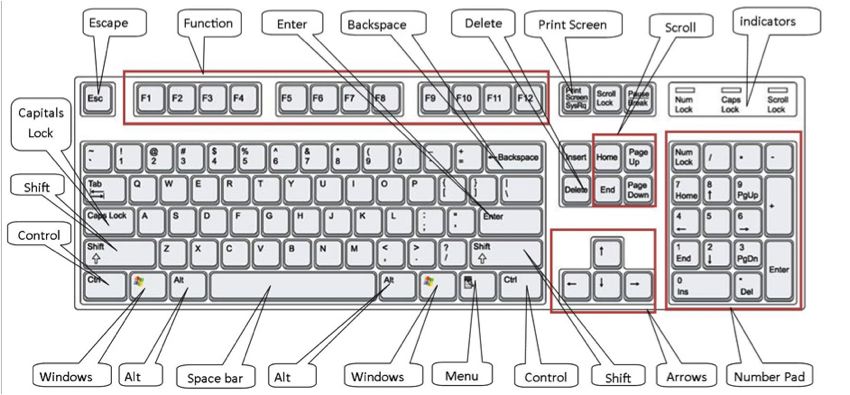
Step 1: Have a good look at your keyboard. The most important keys are labelled on the diagram below:
 
Computer keyboard diagram with labels
 
Click here for an enlarged version of the above diagram, which you can print out for easy reference.
 
Some keyboards, especially those on laptops, will have a slightly different layout. For example, yours might not have a number pad or the delete key may be in a different place. But virtually all keyboards will have these important keys somewhere.
 
Step 2: The main keys are the letter keys. When you type just using these, you get lower-case print. However, if you hold down a ‘shift key’ (there are two to choose from) at the same time as you type, you’ll get UPPER-CASE letters.
 
Try typing your name, including capitals (UPPER-CASE) and spaces. The ‘space bar’ (which you press briefly to make a space) is the wide key at the bottom of the keyboard.
 
Step 3: If you make a mistake in your typing, there’s always a remedy.
 
To delete a letter, place your cursor (mouse pointer) just after the letter and click. Then press Backspace briefly. (Always press briefly – otherwise, you’ll get repeated deletions, spaces, letters or whatever.) Or place your cursor just before the letter, click and press Delete.
 
Backspace and delete
 
Step 4: Now try typing a sentence:
 
 
This is a good sentence to practise because it contains most of the letters of the alphabet.
 
Step 5: You can move the cursor along this sentence without deleting anything by using the arrow keys:
 
The arrow keys
 
Try moving the cursor backwards and forwards through your sentence.
 
Step 6: Now try using the number pad, if you have one.
 
To use this to type numbers, you have to press the Num Lock key. There may be an indicator light at the top of the keyboard or on the ‘Num Lock’ key itself to show that it’s on.
 
Num Lock key
 
Step 7: You can also type using the numbers on the main keyboard. You’ll find them on the row of keys above the top line of letters.
 
Above these numbers are various symbols, which include ‘£’, ‘&’, ‘!’. To use these, hold down the Shift key while you type. So if you press ’7′ on its own, you get ’7′, but if you press ’7′ while you hold down the ‘Shift’ key, you get ‘&’.
 
Try typing:
 
 
You’ll find similar extra symbols elsewhere on the keyboard:


They operate in exactly the same way as the ones above the numbers.
 
Step 8: If you want everything to appear in upper case, press the Caps Lock key and then type:


Again, an indicator light may come on to show that your capitals are ‘locked’. Don’t forget to press this key again when you’re finished to turn ‘Caps Lock’ off.
 
Step 9: The ‘Windows’ key comes in a number of different designs, such as the example to the right. 
 
It does exactly the same thing as the Windows button on the taskbar on your computer screen. You can choose to open the ‘Start’ menu by pressing this key or by clicking the button on the taskbar with your mouse.
 
Step 10: There are a number of ways that you can move round a web page. Try using the keys below to see where they take you:


Step 10: You’ll be told to use the ‘Control’ (Ctrl) and ‘Alternate’ (Alt) keys for some operations. When you do so, keep holding down one or the other key or both keys while you press any other keys.


For example, if you press CtrlAlt and Delete all at the same time, a menu will open. To make it disappear, press the ‘Escape’ (Esc) key in the top left-hand corner of the keyboard.


Step 11: Some of the things that you use the mouse for can be done with keyboard shortcuts. These require you to hold down one key while pressing another, and often involve using the ‘Ctrl’ and/or ‘Alt’ keys. Some people prefer using them to using the mouse. There are many shortcuts – check out the list provided by Microsoft Support.
 
- See more at: http://digitalunite.com/guides/computer-basics/how-to-use-a-computer-keyboard#sthash.Lad7Rix1.dpuf

History of the Internet

From Wikipedia, the free encyclopedia
See also: Internet timeline
The history of the Internet begins with the development of electronic computers in the 1950s. Initial concepts ofpacket networking originated in several computer science laboratories in the United States, Great Britain, and France. The US Department of Defense awarded contracts as early as the 1960s for packet network systems, including the development of the ARPANET (which would become the first network to use the Internet Protocol.) The first message was sent over the ARPANET from computer science Professor Leonard Kleinrock's laboratory at University of California, Los Angeles (UCLA) to the second network node at Stanford Research Institute (SRI).
Packet switching networks such as ARPANET, NPL networkCYCLADESMerit NetworkTymnet, and Telenet, were developed in the late 1960s and early 1970s using a variety of communications protocolsDonald Davies was the first to put theory into practice by designing a packet-switched network at the National Physics Laboratory in the UK, the first of its kind in the world and the cornerstone for UK research for almost two decades.[1][2] Following, ARPANET further led to the development of protocols for internetworking, in which multiple separate networks could be joined into a network of networks.
Access to the ARPANET was expanded in 1981 when the National Science Foundation (NSF) funded the Computer Science Network (CSNET). In 1982, the Internet protocol suite (TCP/IP) was introduced as the standard networking protocol on the ARPANET. In the early 1980s the NSF funded the establishment for national supercomputing centers at several universities, and provided interconnectivity in 1986 with the NSFNET project, which also created network access to the supercomputer sites in the United States from research and education organizations. CommercialInternet service providers (ISPs) began to emerge in the very late 1980s. The ARPANET was decommissioned in 1990. Limited private connections to parts of the Internet by officially commercial entities emerged in several American cities by late 1989 and 1990,[3] and the NSFNET was decommissioned in 1995, removing the last restrictions on the use of the Internet to carry commercial traffic.
In the 1980s, the work of Tim Berners-Lee in the United Kingdom, on the World Wide Web, theorised the fact that protocols link hypertext documents into a working system,[4] marking the beginning the modern Internet. Since the mid-1990s, the Internet has had a revolutionary impact on culture and commerce, including the rise of near-instant communication by electronic mailinstant messagingvoice over Internet Protocol (VoIP) telephone calls, two-way interactive video calls, and the World Wide Web with its discussion forumsblogssocial networking, and online shopping sites. The research and education community continues to develop and use advanced networks such as NSF's very high speed Backbone Network Service (vBNS), Internet2, and National LambdaRail. Increasing amounts of data are transmitted at higher and higher speeds over fiber optic networks operating at 1-Gbit/s, 10-Gbit/s, or more. The Internet's takeover of the global communication landscape was almost instant in historical terms: it only communicated 1% of the information flowing through two-way telecommunications networks in the year 1993, already 51% by 2000, and more than 97% of the telecommunicated information by 2007.[5] Today the Internet continues to grow, driven by ever greater amounts of online information, commerce, entertainment, and social networking.

Contents

  [hide